DxO PhotoLab 9.6 adds DeepPRIME 3 to Bayer sensor cameras and introduces lossless compressed RAW files!
This blog post is part of the DxO series of posts using DxO PureRAW, DxO PhotoLab, and Nik Collection. Read my separate posts for each of these applications:
[ DxO Workflow | DxO PureRAW | DxO PhotoLab | Nik Collection ]
Disclaimer
The DxO Labs applications were provided for review purposes, but all opinions are my own.
You can use my name TAKU at checkout for 15% off any of their products from their website.



DxO PureRAW and DxO PhotoLab both use the same DeepPRIME noise reduction and Lens Optimization engines, therefore you will only need either one of these. If you already have and use Adobe Lightroom, consider just DxO PureRAW to take advantage of its noise reduction and lens optimization settings. Otherwise, consider DxO PhotoLab, which provides more colour editing and file management tools in addition to DeepPRIME.
DxO PhotoLab 9.6
Primary changes from DxO PhotoLab 9.0 include:
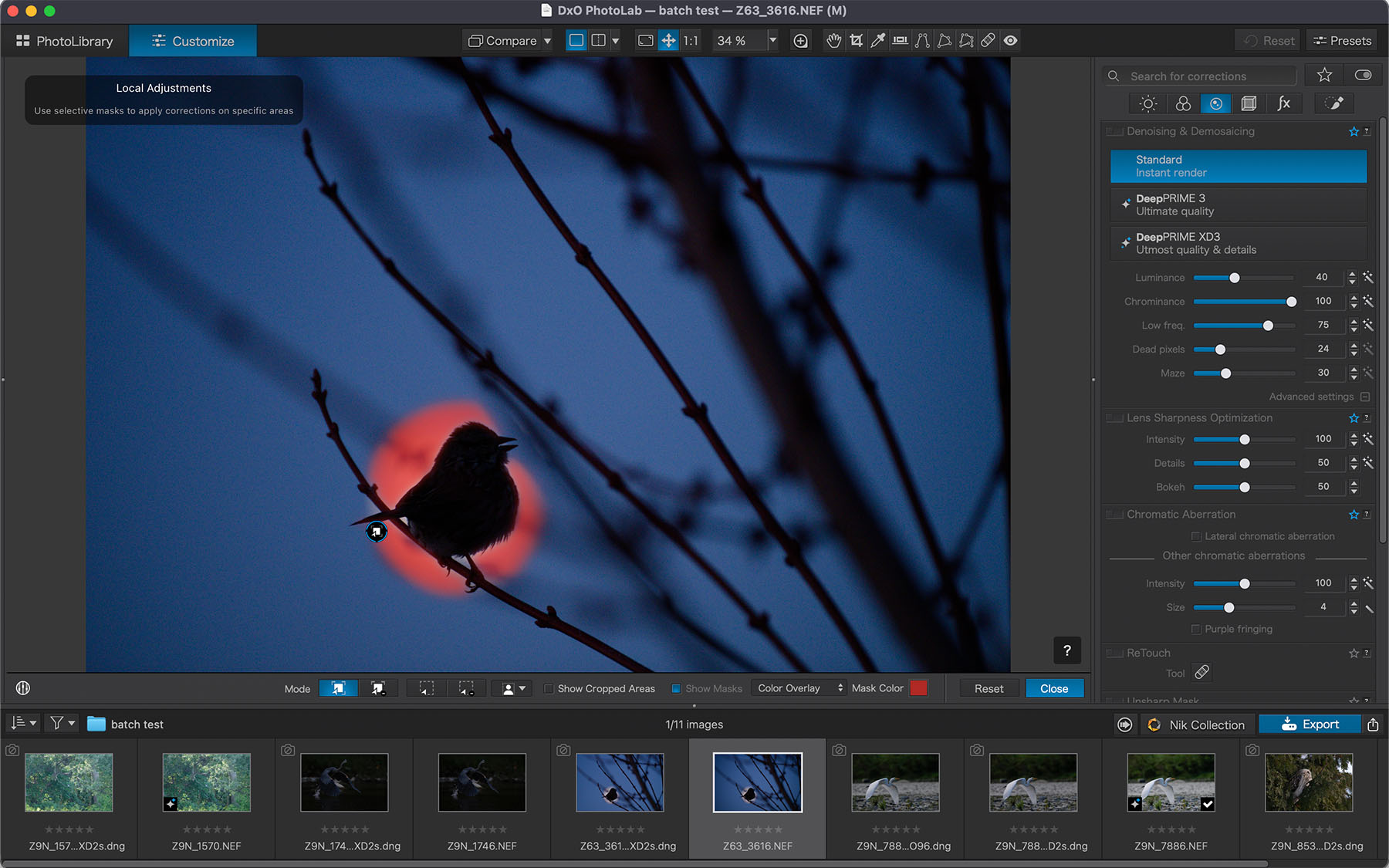
- DeepPRIME 3 denoising and demosaicing for Bayer sensor cameras
- Lossless compressed DNG files for up to four times smaller file size
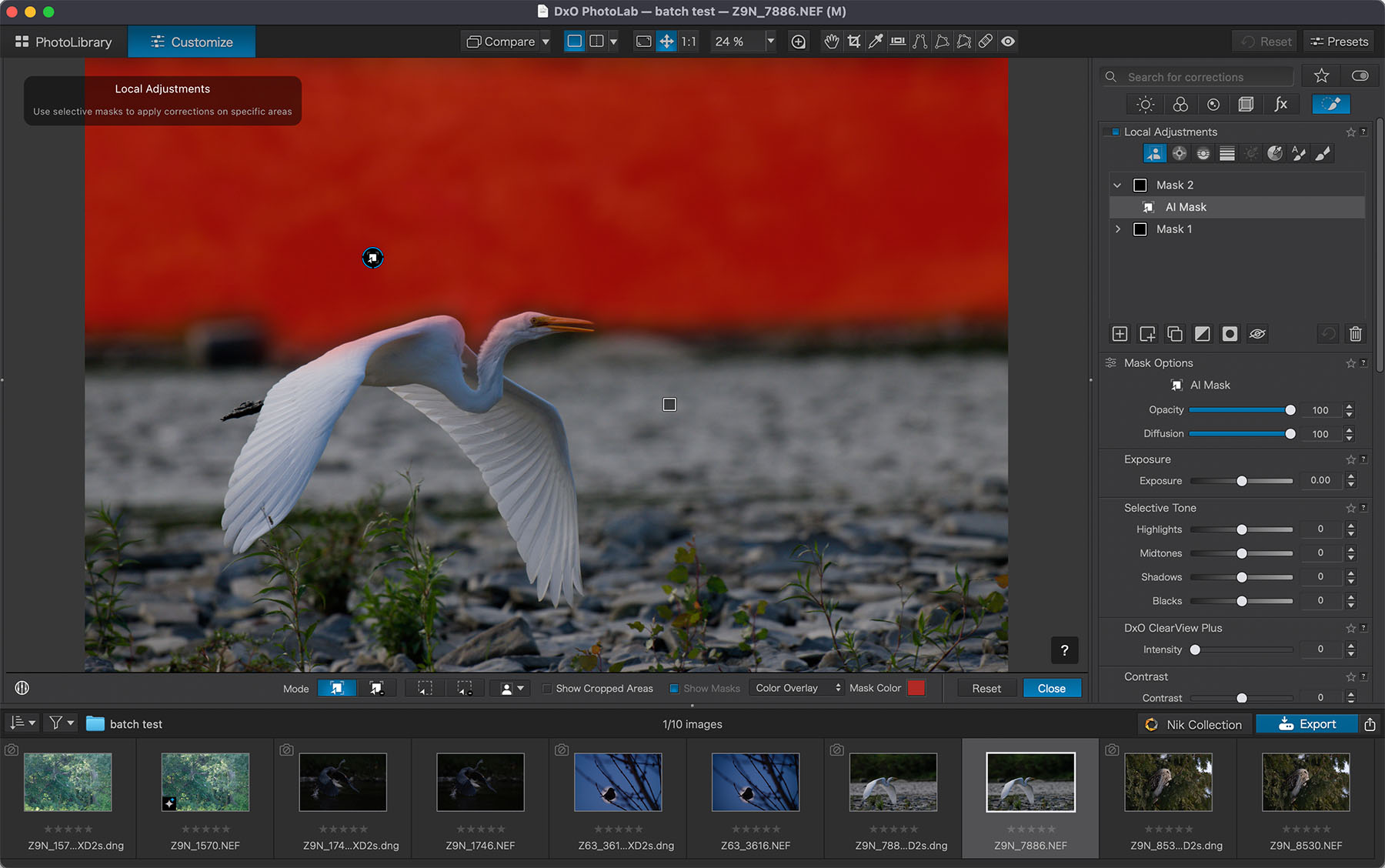
- Diffusion control on AI masks
DeepPRIME 3
For the details of the DeepPRIME 3 demosaicing process, please read this DxO PureRAW 6 post. In summary, the lens optimization and sharpening are superior to that of Adobe Lightroom while the noise reduction is almost the same as Lightroom’s AI Denoising feature.
Diffusion AI Masking
The diffusion slider is only available for AI masks, since diffusion controls are already available in other masks. This allows you to better define masks to your needs.
I am still waiting for when they introduce the ability to intersect masks, like in Adobe Lightroom. This will further enhance the ability to fine-tune masks.
Pricing
DxO PhotoLab buying new: USD$239.99
Upgrade from a previous version: USD$119.99
DxO PhotoLab 9.6 is a free update to DxO PhotoLab 9 users!
Final Thoughts
The changes to the DxO pre-processing engine are the main attraction to this 9.6 update. The lossless compressed DNG file producing up to four times smaller file sizes is a big plus, and could be reason enough to update to this version, should you have version 8 or earlier.
Local masking in DxO has always been one of the areas I felt needed improvements, particularly when compared to those available in Adobe Lightroom. The addition of the diffusion feature in AI masks helps to fine tune masks, making things easier to select, however, I still don’t find masking as easy to do as in Lightroom.
This is a free update to those using DxO PhotoLab 9.0, so it is for sure a most welcome update. To those new to DxO and without another photo editor, PhotoLab 9.6 is a great option at $239.99 considering all of the functionality it includes.
Do you use DxO PhotoLab? Let me know in the comments!
Use my name TAKU for 15% off any of their products on their website: