DxO PureRAW provides DxO’s renown noise reduction and lens optimization settings for a more superior RAW file.
This blog post is part of the DxO series of blog posts, using DxO PureRAW, DxO PhotoLab, and Nik Collection. Read my separate reviews posts for each of these applications:
[ DxO Workflow | DxO PureRAW | DxO PhotoLab | Nik Collection ]
Disclaimer
The DxO Labs applications were provided for review purposes, but all opinions are my own.
You can use my name “TAKU” at checkout (without quote marks) for 15% off any of their products from their website.



DxO PureRAW 5
DxO Labs may be most known for their vast database of camera and lens corrections for their demosaicing processes in DxO PureRAW and PhotoLab.
Demosaicing is the process where the RAW information of your file is analyzed and interpreted into a viewable image. Thus, depending on the algorithm used for this process, the quality (detail, sharpness, noise) of a RAW file will look different. This is why the same RAW file may look slightly different when you open them in different software programs like Adobe Photoshop, Capture One, or PhotoLab.
What is Demosaicing?
A typical camera sensor (with Bayer filter) records only one colour per pixel: red, green, or blue. Each pixel therefore only records 1/3 of the available data. This Bayer filter arranges pixels in a 2 pixel by 2 pixel grid (a mosaic): one red, one blue, and two greens. The software used to open your RAW file interpolates the missing 2/3 information of each pixel by analyzing neighbouring pixels.
The demosaicing process therefore interpolates each pixel’s missing information by analyzing its neighbouring pixels to form a full three-channel (RGB) pixel.
Note that I haven’t done extensive testing on how the DeepPRIME demosaicing and noise reduction fairs with Adobe Lightroom so I will leave that for another day.
With a more complete picture created with PureRAW, you should end up with a more superior RAW file to start your editing with.
Use DxO PureRAW if you already have a RAW editor for editing your images for colour and creative effects.
DxO PureRAW only imports RAW files and outputs them back as linear DNG files for you to import back into your editing program. Batch importing RAW files for conversion can be a very useful tool but keep in mind this essentially means you’ll end up with files that are three times larger in MB than what you started with.
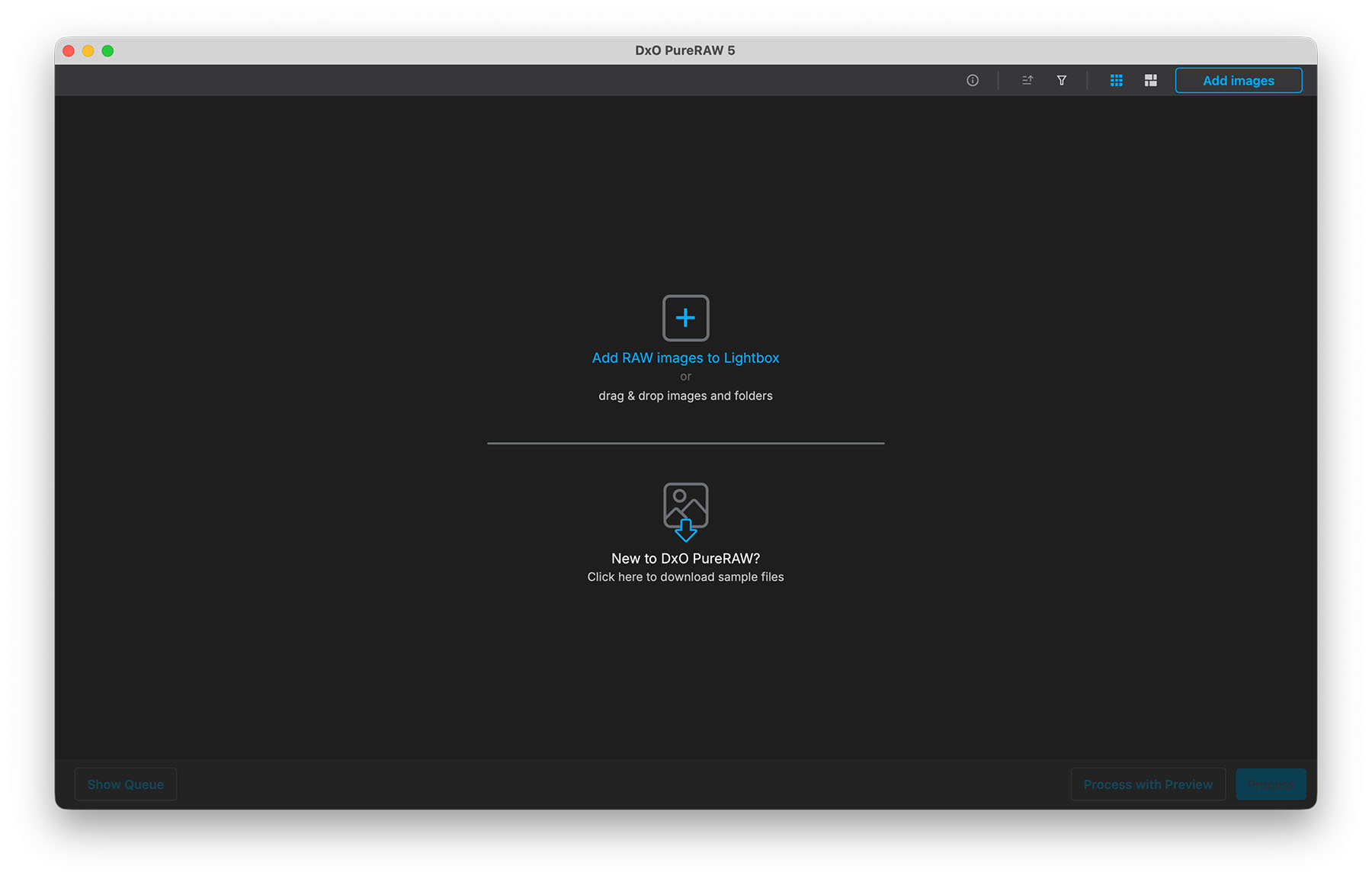
Once you click on its icon, you’re presented with a blank screen. 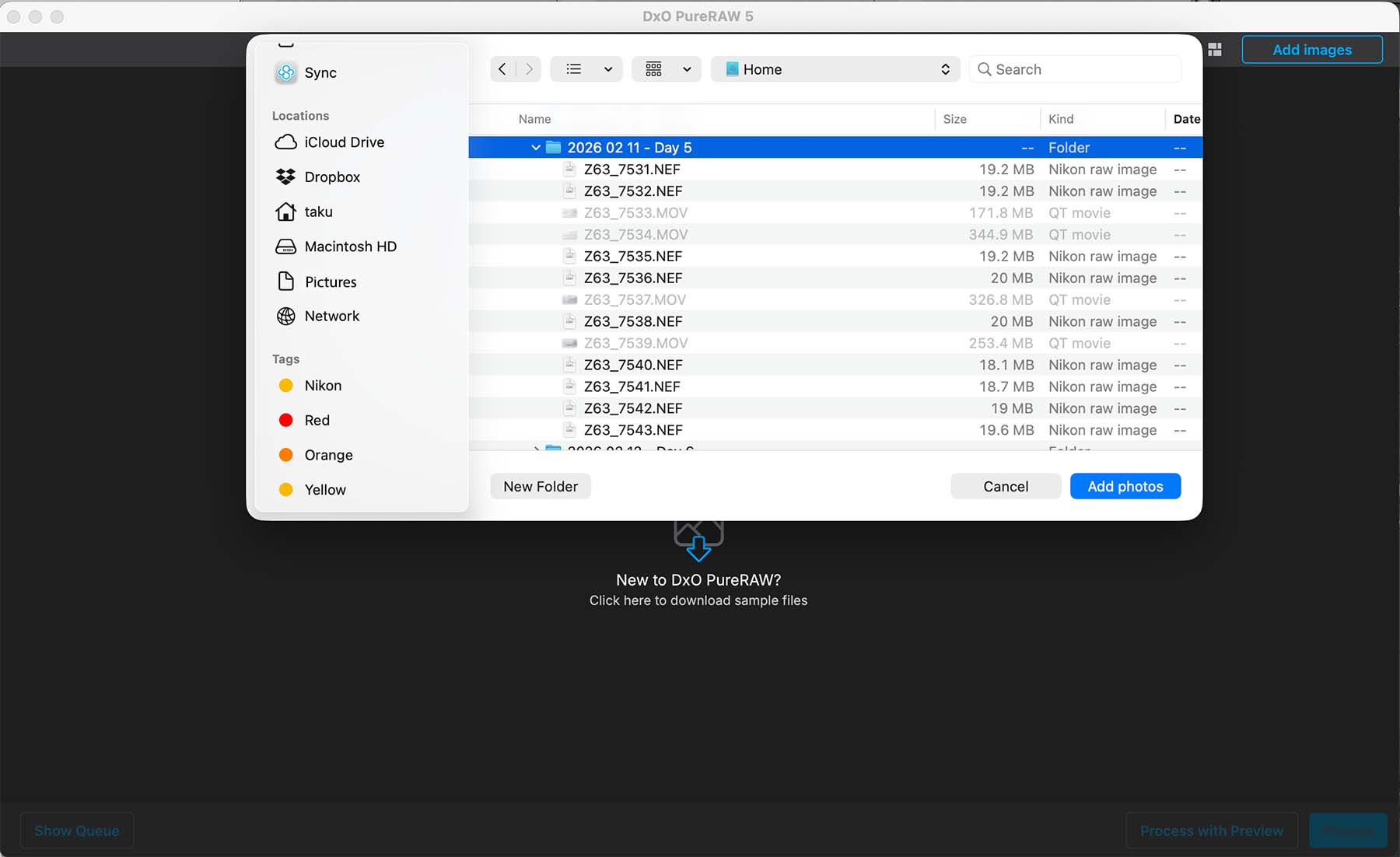
You can import an entire folder of images, or just select one RAW file to edit. 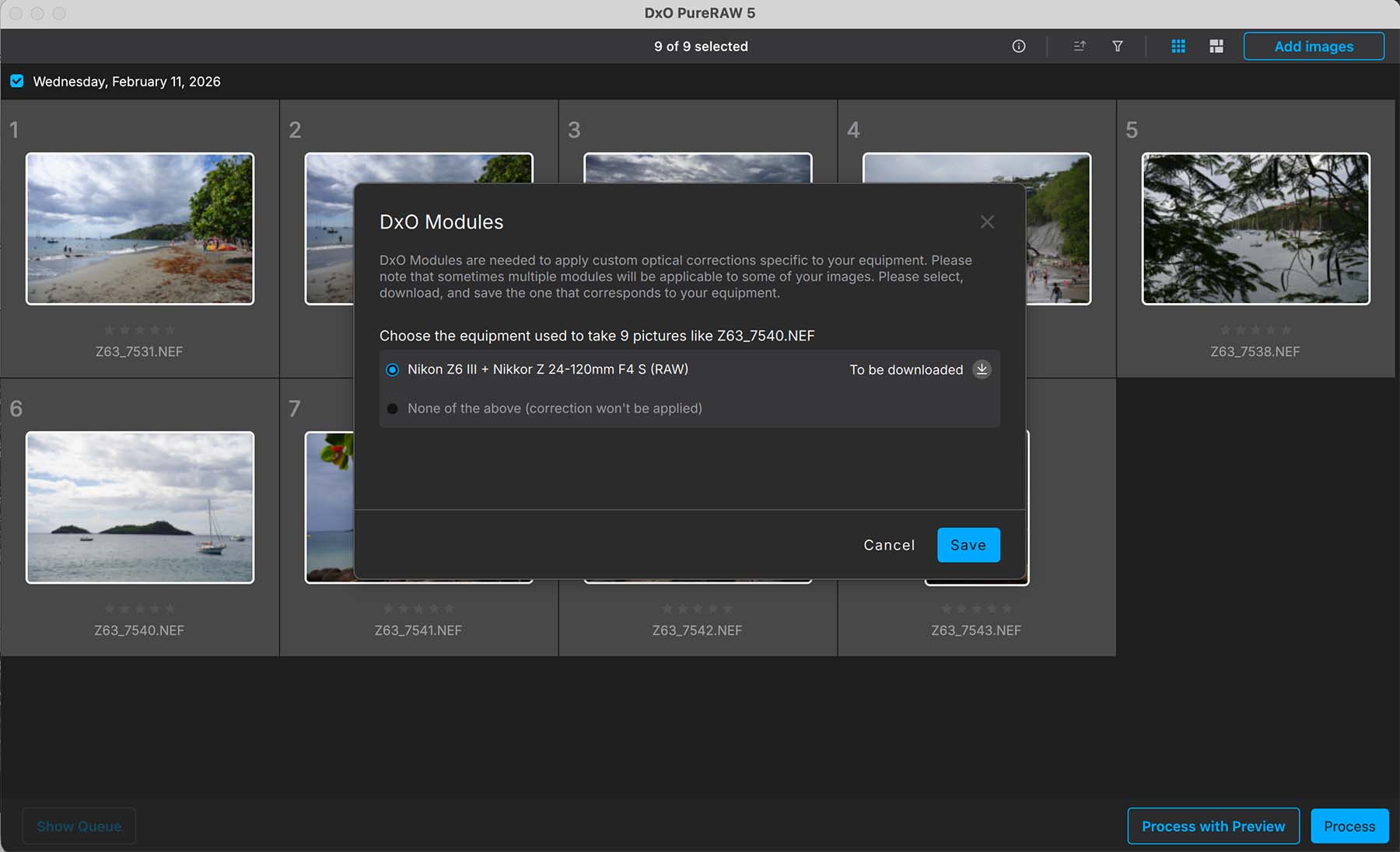
Upon import, you’ll most likely get a dialog screen asking you to download a set of modules to cover the camera and lens combination that you used to take the photo(s). You only need to do this once for every camera and lens combination. By doing this, you’re applying the rich history of DxO’s optical research into lens analysis over the last 20 years. There may only be subtle adjustments, but every lens has their set of distortions that can be corrected. 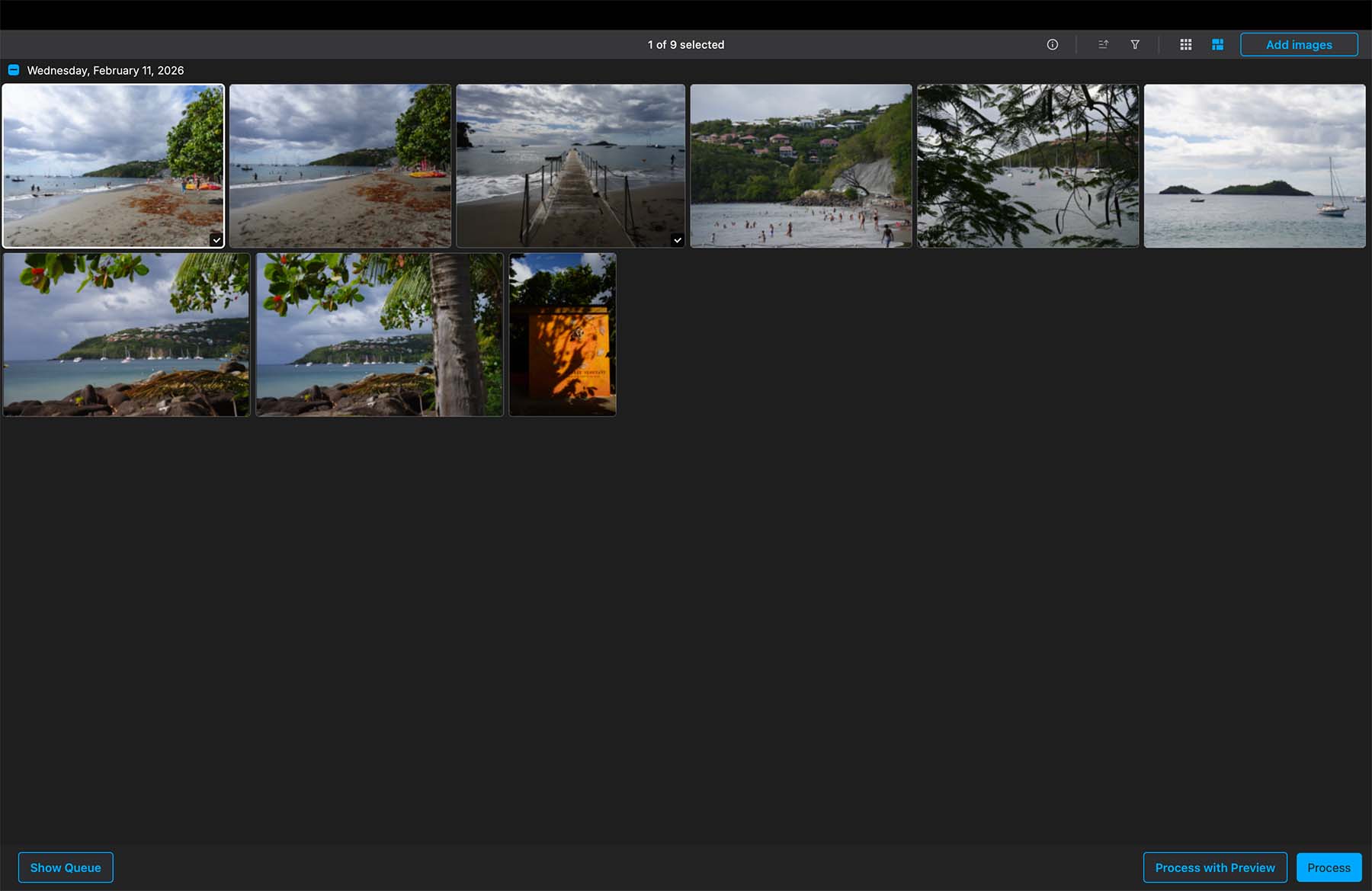
Once your image(s) have been imported, select one and press either Process or Process with Preview.
Click Process to process your file(s) without previewing it.
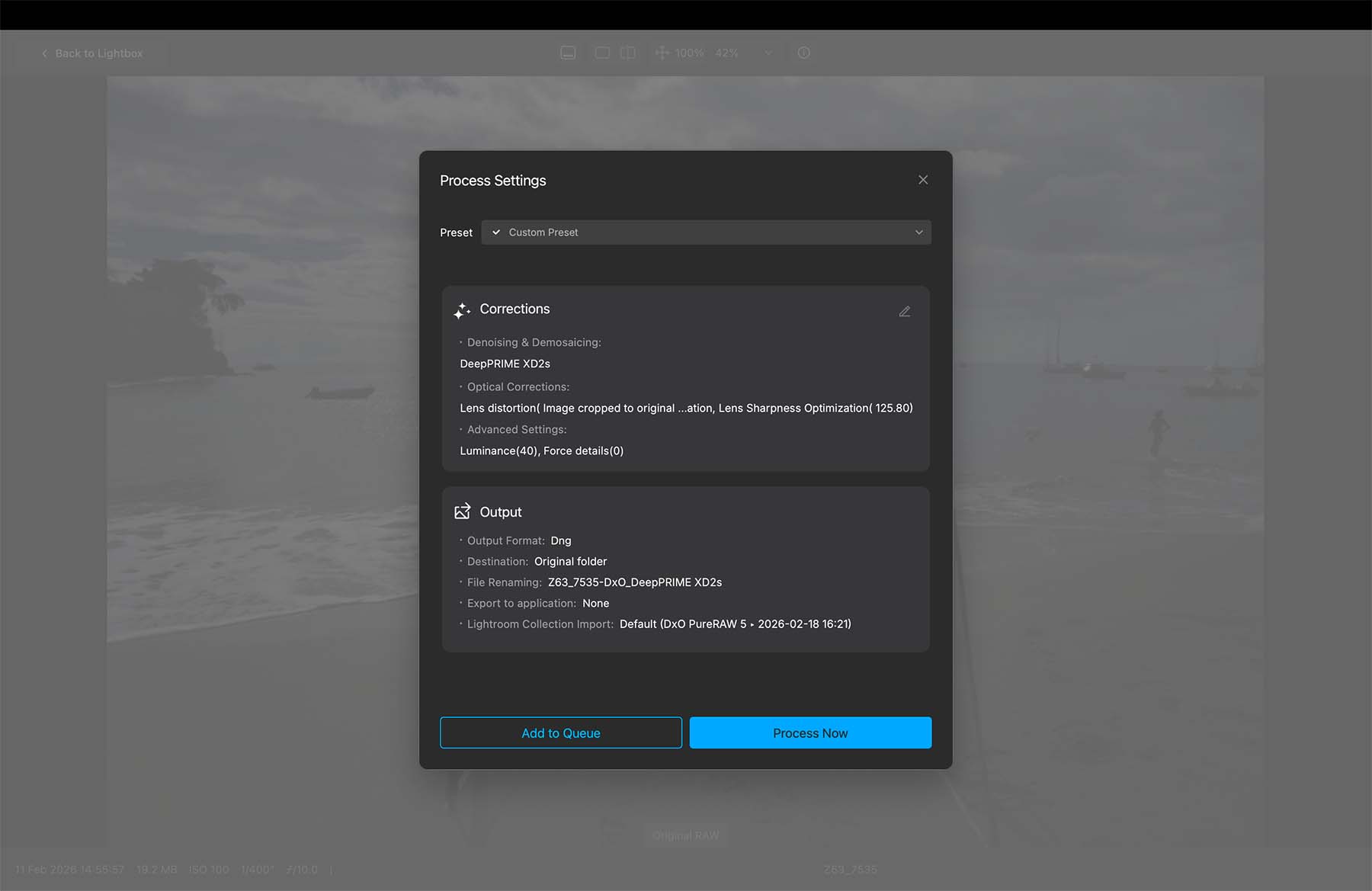
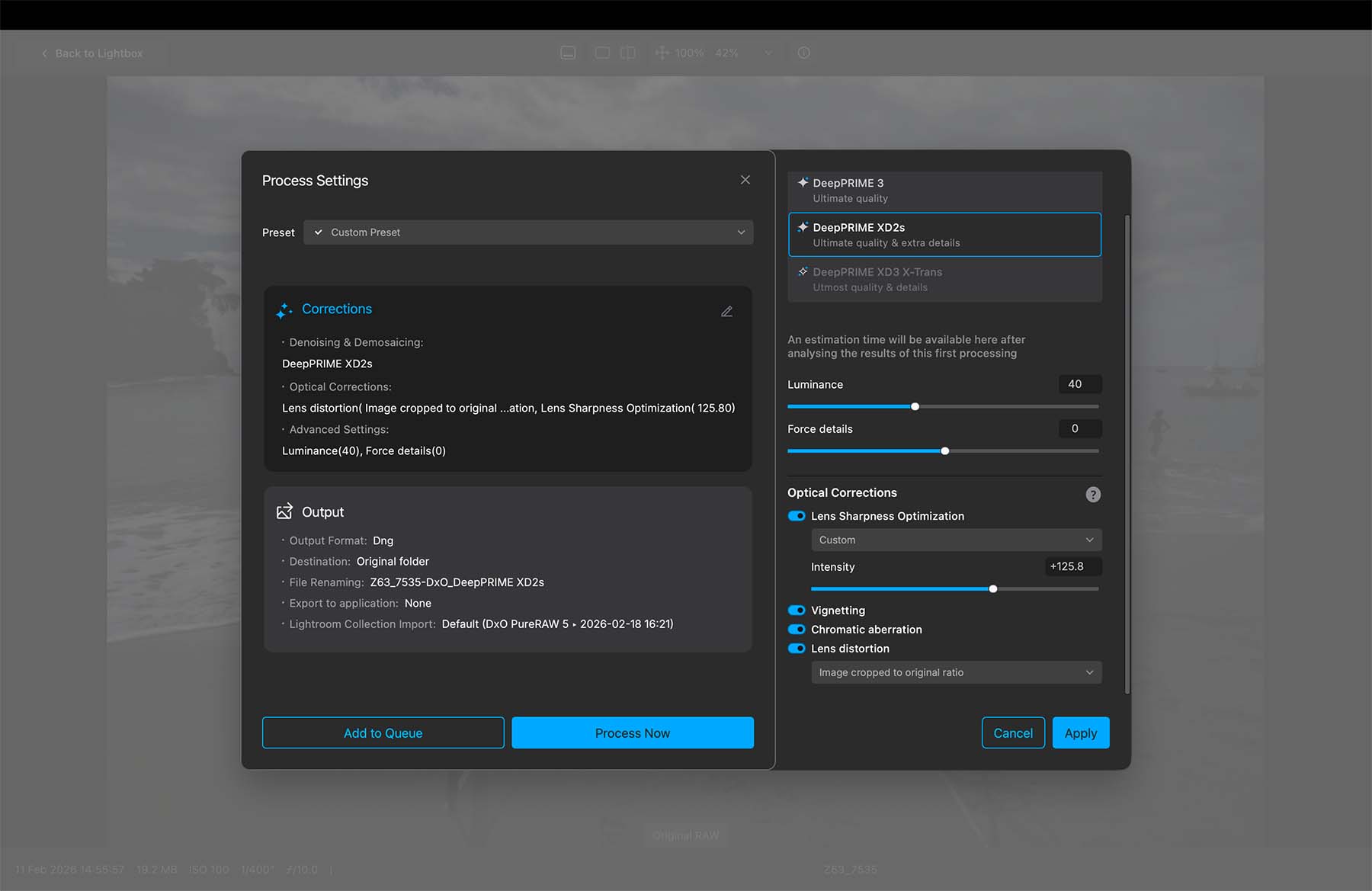
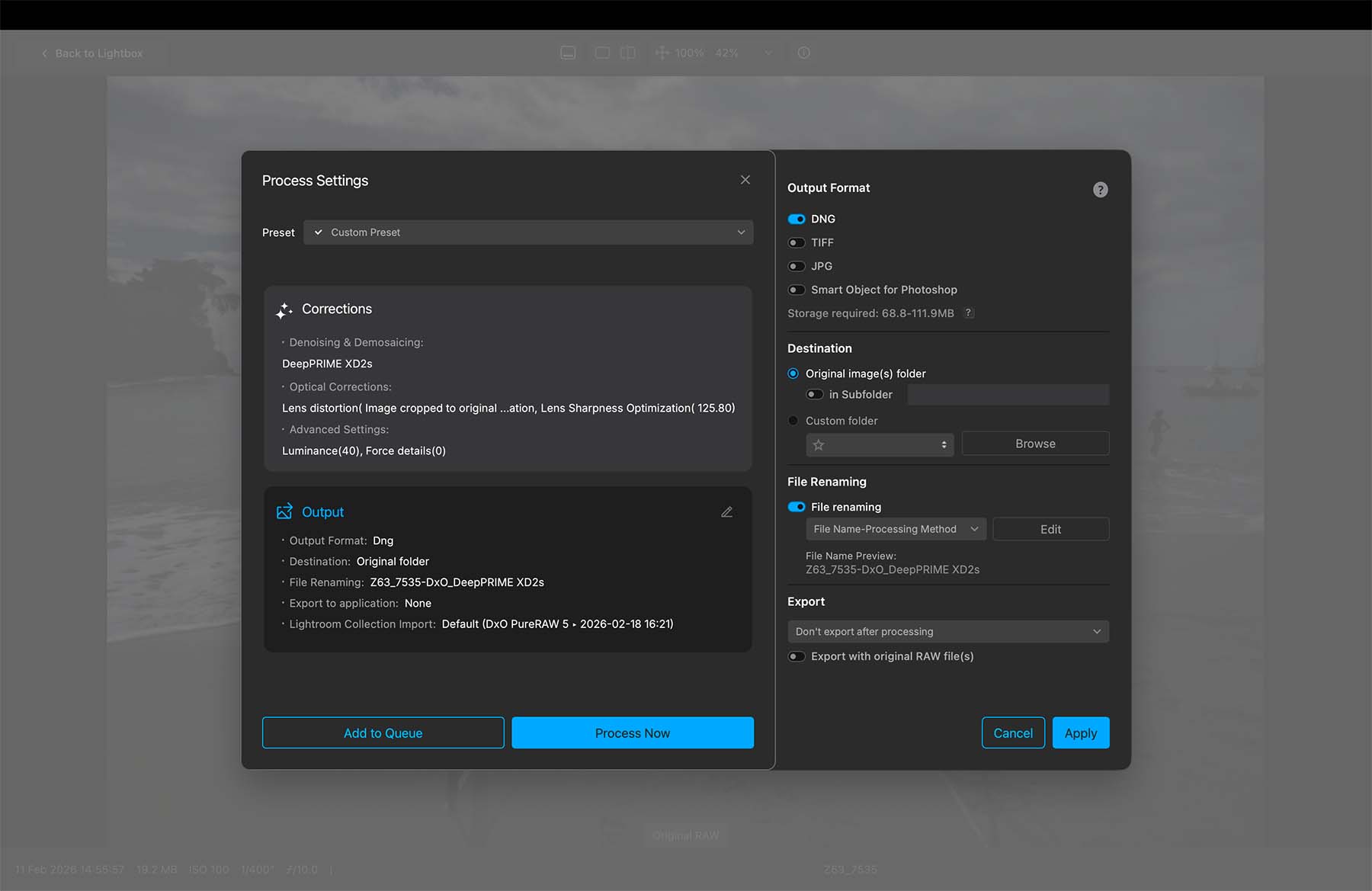
Click Process with Preview to first see the results as you change the settings. Mind you, you can’t seem to preview the Luminance and Force Detail options. Those are visible once you Process the file.
My typical default settings are the following:
- DeepPRIME XD2s
- Luminance and Force Detail applied locally using masks if needed
- Lens Sharpness: Strong
- Vignette, Chromatic Aberration: ON
- Lens Distortion: Maximum Rectangle
- Output Format: DNG
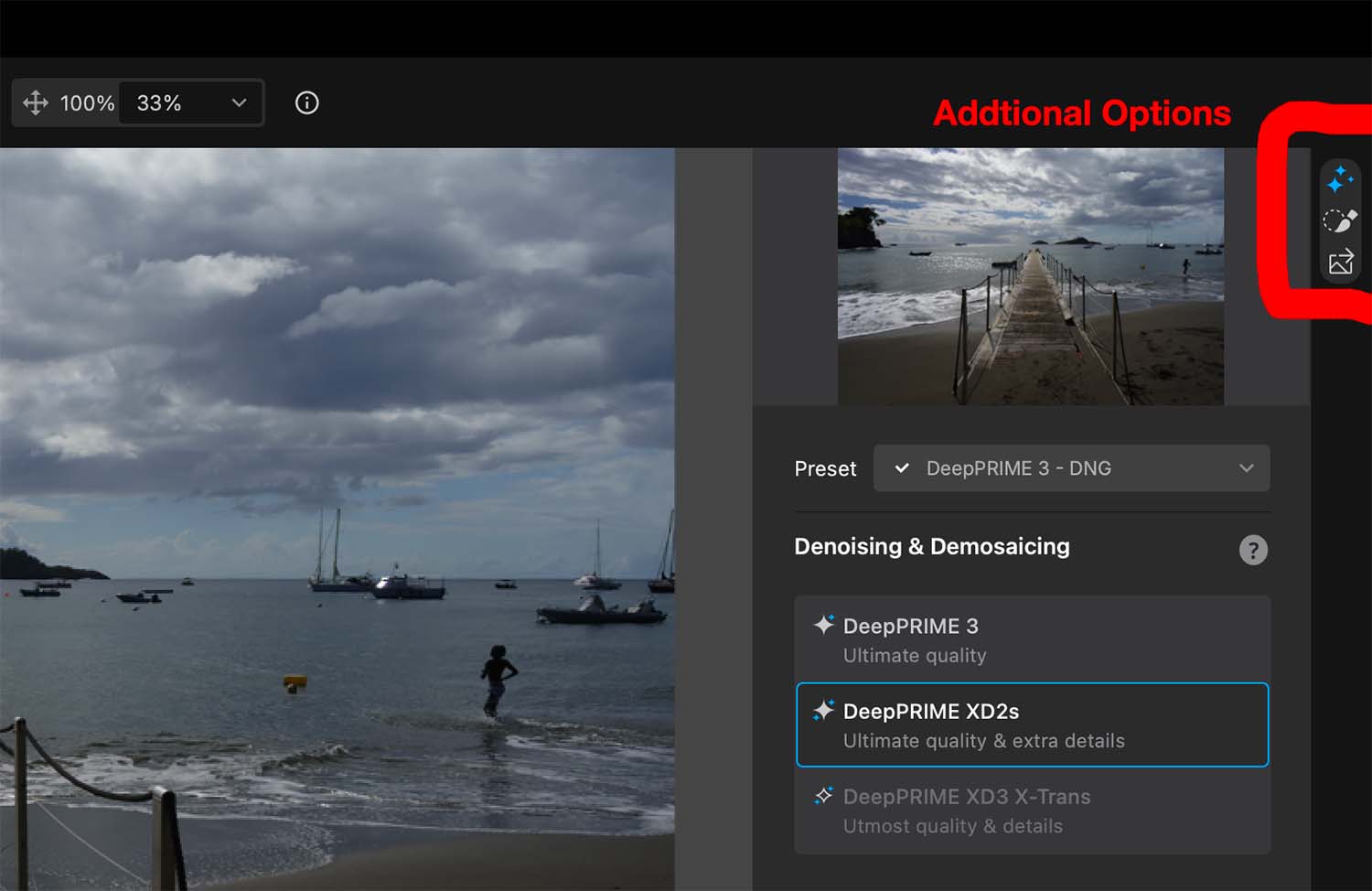
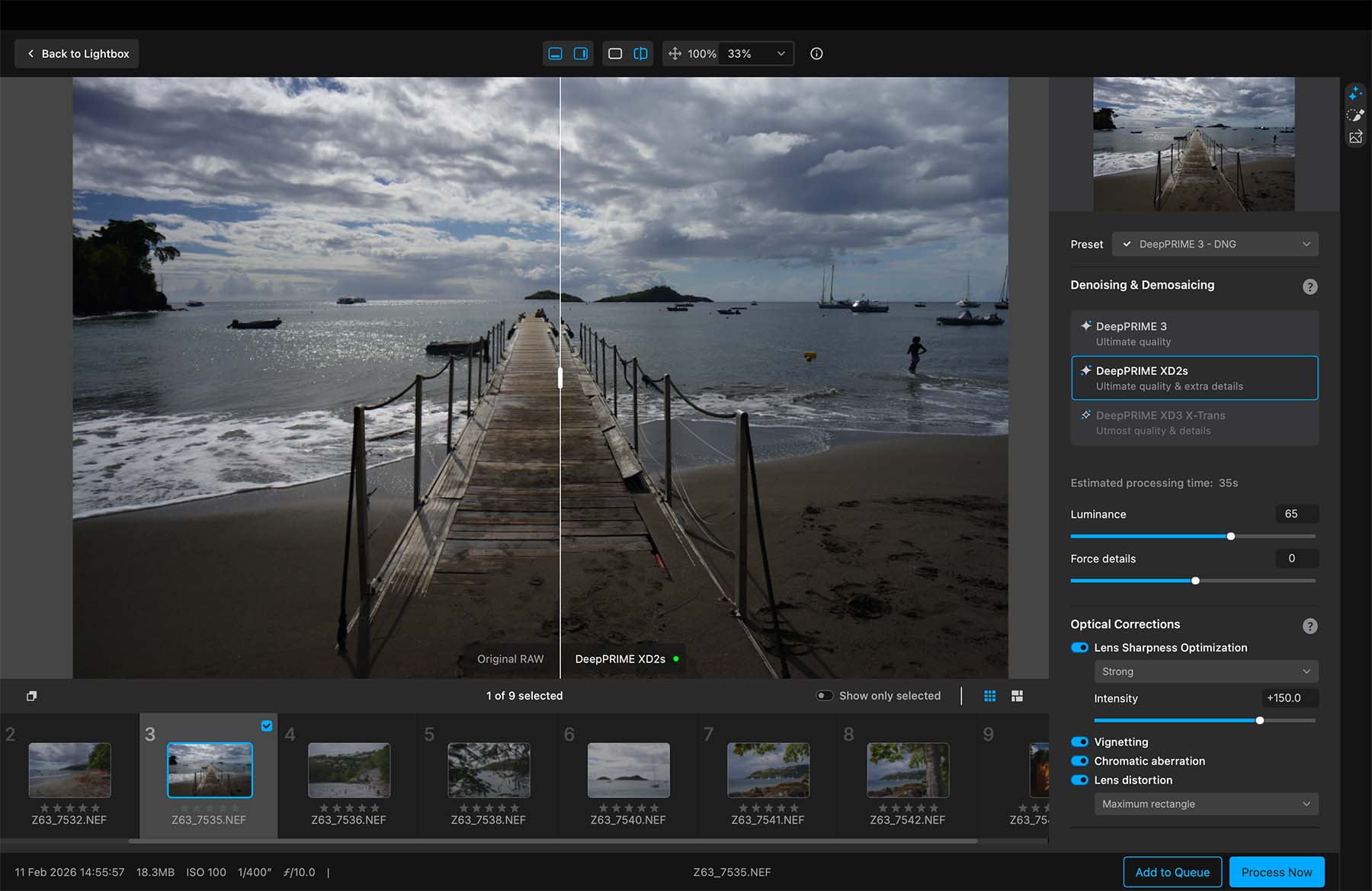
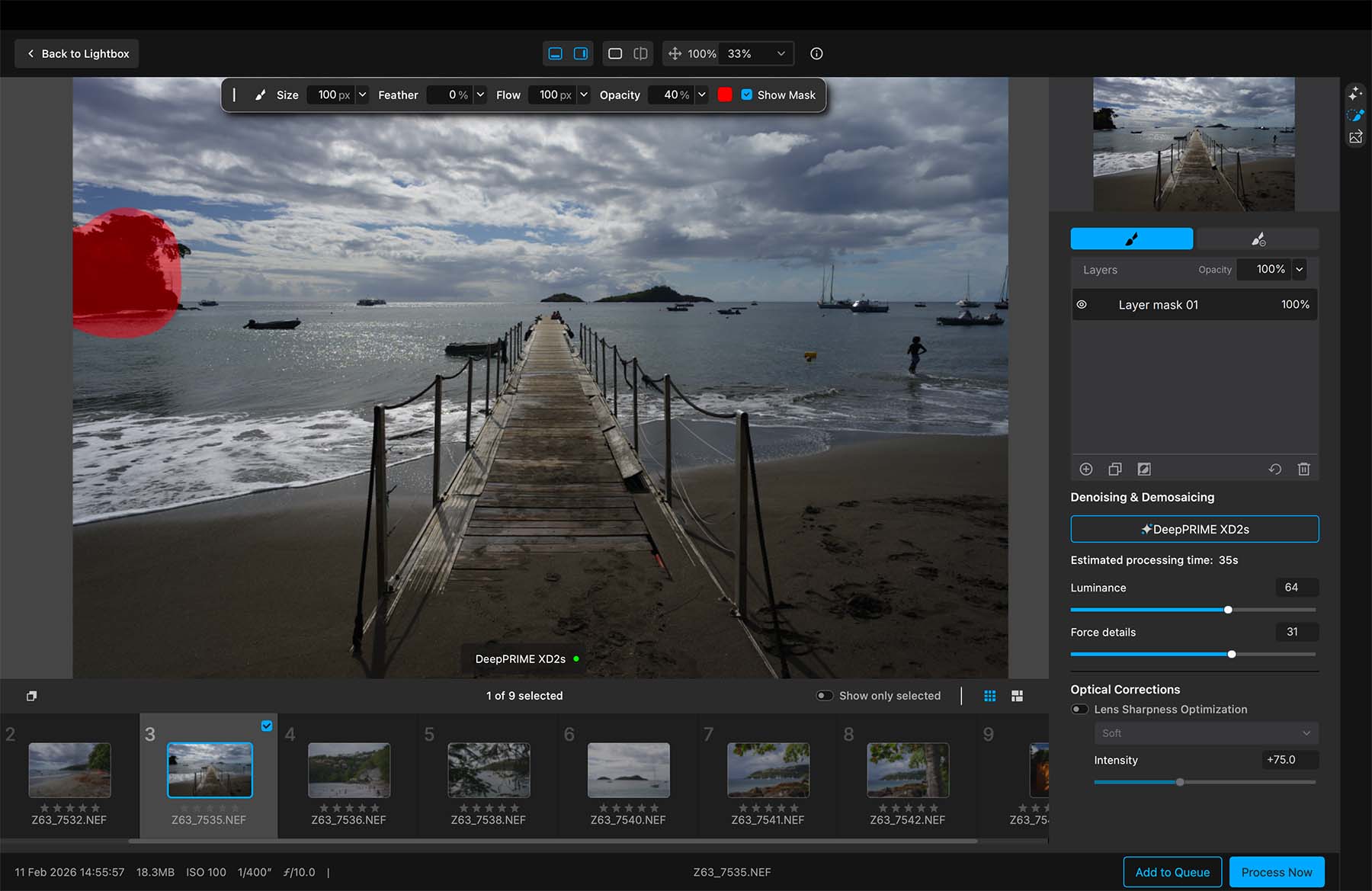
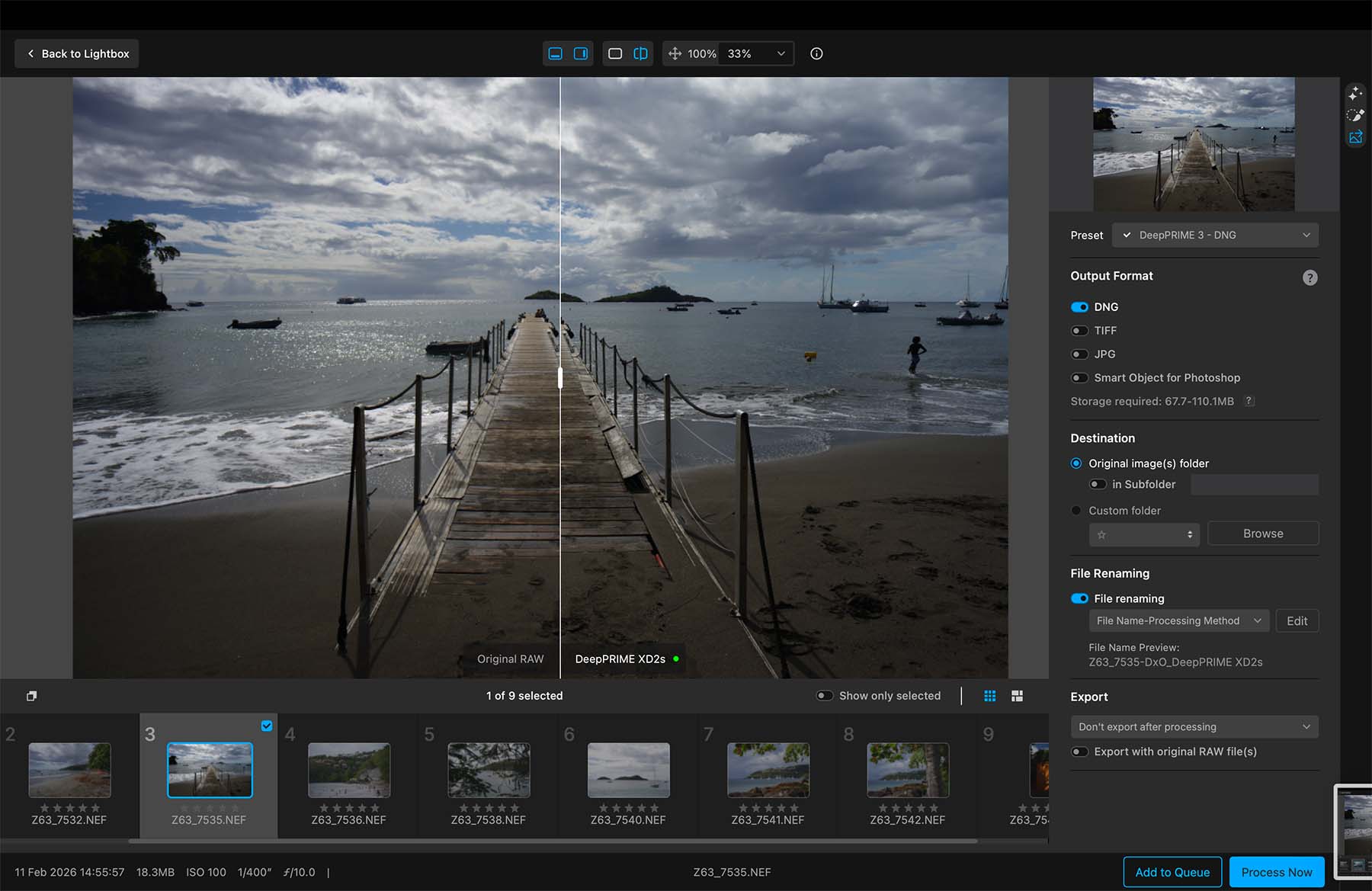
Click Process and DxO PureRAW will do its job. You can queue several files so that one will process as another finishes. This batch processing can be useful if you have several files you would like to process.
You have the option of saving the file as a .dng, .tif, or even .jpg, as well as selecting where to save the resulting file. You can easily bring the resulting .dng file by using the Export to Lightroom or Photoshop feature.
Final Thoughts
The purpose of the DxO PureRAW is to provide you with an improved starting point to further edit your RAW file with colour correction and presets. As lens and camera combinations often produce some sort of image degradation, it’s clear that DxO PureRAW improves your file by fixing these degradations.
If you’re using an Adobe Lightroom workflow, it automatically does a similar correction upon import, so you don’t necessarily see this part of the workflow. The problem here is that Adobe Lightroom is limited in its camera and lens combinations so it may not necessarily have your exact camera and lens setup. You’re also working with their database of lens corrections.
Whether you care to fine-tune your RAW file before going on to further edit your file is up to you; it does add an extra step in your workflow after all.
For the casual user, I would anticipate the results from DxO PureRAW to be not as critical in their workflow—especially if you’re already using a program that does something adequately.
The precision control and lens corrections are valuable features for those advanced enthusiasts and professionals who appreciate the corrections DxO PureRAW is able to fix.
Do you use DxO software in your workflow? Let me know!
Save 15% your purchase of any DxO software by using my name TAKU at checkout on their website: